Reading the attention table
The attention table is your coach dashboard — a ranked list of every client, colour-coded by who needs your attention right now. You should be able to open it and know who to contact before you've clicked anything.
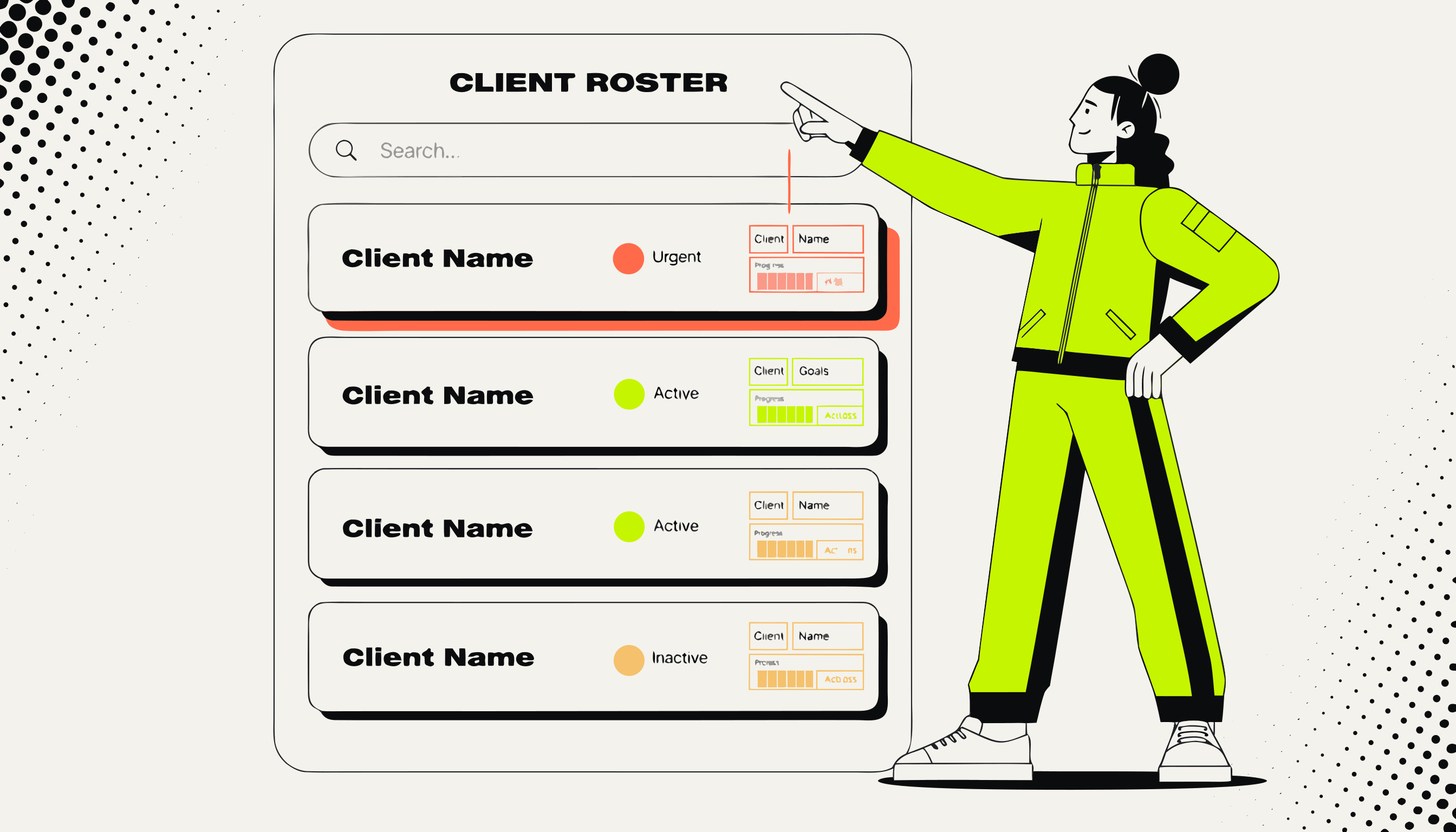
The three statuses
Every client in your roster sits in one of three states:
Green — On track
The client is completing workouts, hitting check-ins, and their tracker data looks consistent. No action needed.
Amber — Needs a nudge
Something's slipped. They missed a check-in, skipped a few workouts, or their compliance has dropped noticeably. Worth a message.
Red — At risk
Multiple signals are off. They haven't logged in a week, haven't responded to a check-in, or compliance has dropped sharply. Act now before they go dark.
What triggers each status
Status is calculated automatically from a combination of signals. You don't set it manually.
Workout completion
How many planned sessions did the client log in the last 7 days vs. how many were scheduled? Consistently below 50% moves toward amber, below 25% toward red.
Check-in response
Did they submit their check-in? A missed check-in is an early amber signal — two in a row is amber-to-red territory.
Last active
When did they last open the app and log anything? Going silent for 5+ days without explanation is a red signal regardless of check-in status.
Tracker compliance
Are they hitting nutrition targets? Persistent under-reporting or consistent big misses factors into the read.
Note: Status is a signal, not a verdict. A client who missed two workouts because they told you about a work trip is still green in your head — the table doesn't know that. Use the AI weekly read and your own notes to add context.
Sorting and filtering
By default the table sorts by status — red at the top, then amber, then green. Within each colour group, clients are sorted by last active (most out-of-touch first).
You can also sort by name, program end date, or last check-in. Use the filter to narrow to just amber or just red clients when you want to batch your outreach.
The AI weekly read
Every client gets a weekly AI summary — a short paragraph that reads across their trainer logs, check-in responses, notes, and tracker data. It appears in the attention table row and in full on the client's profile.
The read runs automatically every Monday. You can also trigger it manually from the client's profile if you want a fresh read mid-week.
To feed more context into the AI read, add notes and tag them with #ai-readable. See the AI weekly read guide for details.
Acting on amber and red clients
From the attention table you can click through to a client to see their profile, recent logs, and last check-in. If you want to act quickly:
- Send a message:quick one-liners (“Hey — everything OK?”) resolve a lot of amber situations.
- Adjust the program: if the client is consistently missing sessions because the volume is too high, open the program builder and cut it back.
- Pause billing: if a client is going offline for a known reason, pause their Stripe subscription from their profile. Grace periods apply automatically.