Writing programs with the builder
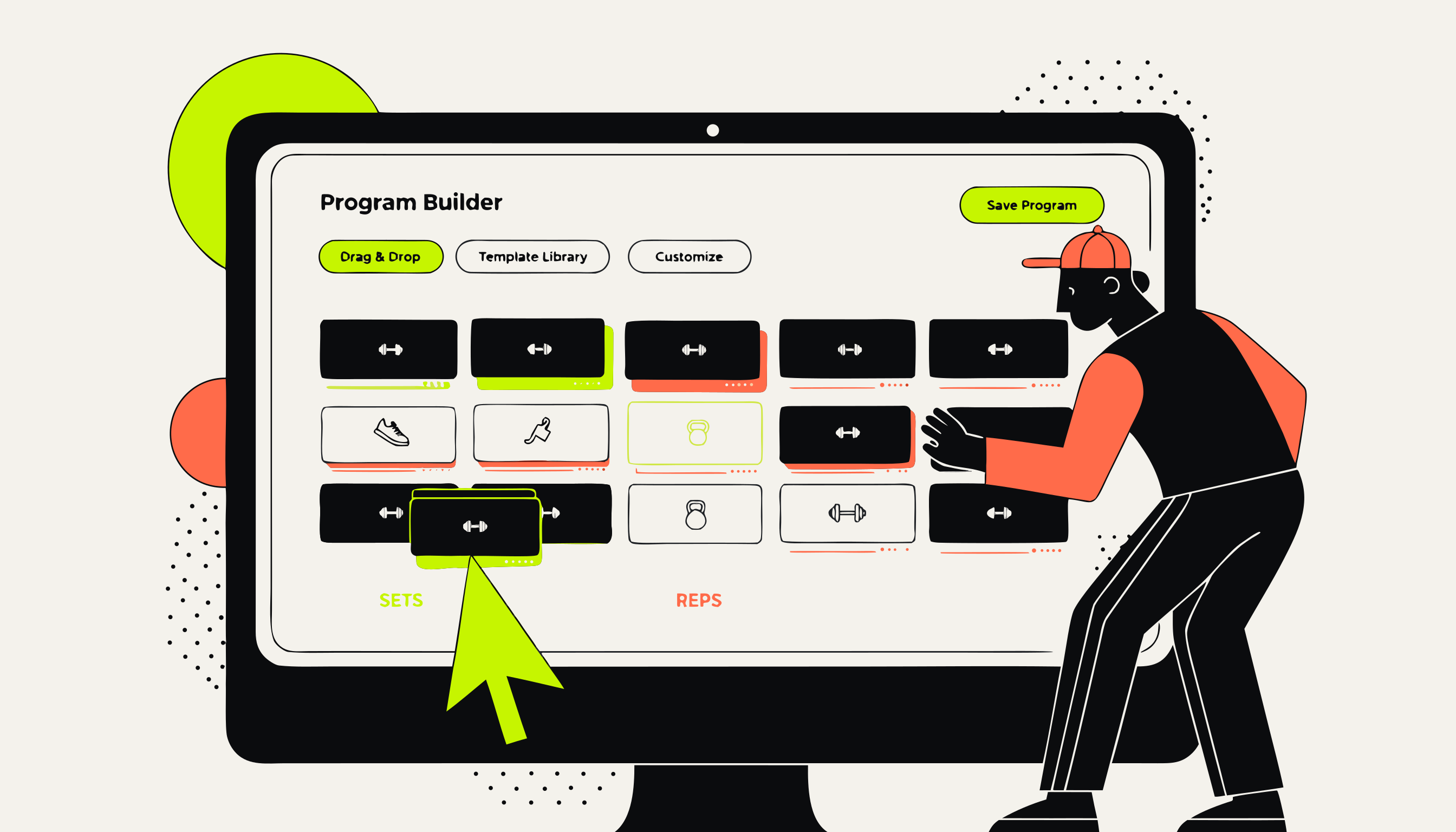
The program builder is a drag-and-drop editor for multi-day training plans. You can build a full week of programming in a few minutes, add demo videos, and ship it to a client with one click.
Open the builder
Go to your client's profile from the roster and click the Programtab. If they don't have an active program yet, you'll see a prompt to create one. Click New program.
You can also duplicate an existing program — either from the same client or from another client on your roster. Duplicating is the fastest way to start a new phase when you want to keep the structure and tweak the numbers.
Add days and exercises
The builder is structured as days (columns) and exercises (rows within each day). To add a day, click + Add day. To add an exercise, click + Add exercise inside a day.
The exercise search covers 100+ exercises with normalized names — start typing and pick from the list. If you need an exercise that isn't in the library, you can type a custom name.
Reorder exercises by dragging the handle on the left. Reorder days by dragging the day header.
Note: Rest daysare days with no exercises. Add a day and leave it empty, or label it “Rest” in the day title. Clients see it in their program as a rest day — it won't show up as missed activity.
Set targets per exercise
Each exercise has four target fields: Sets, Reps, Weight, and RPE(Rate of Perceived Exertion, 1–10). You can fill in any combination — they're all optional.
- Sets / Reps: e.g. 4 sets × 6 reps. You can write rep ranges like “6–8” in the reps field.
- Weight: absolute (e.g. 80kg) or percentage of 1RM (e.g. 75%). Leave blank to let the client self-select.
- RPE: a target effort level. Useful when you want to auto-regulate load without specifying a weight.
- Rest: rest period between sets in seconds.
You can also add per-exercise notes — coaching cues, technique reminders, or anything you want the client to read before they start.
Attach demo videos
Each exercise has a Demo video field. Paste a YouTube link (or any direct video URL) and a thumbnail will appear. Clients can tap it before a set to watch the demo.
If you record your own demo videos, upload them directly instead of linking — use the video upload option in the exercise card. Uploaded videos are stored on your GymBro account.
Review with AI before you assign
When the program looks ready, click Improve with AIbefore assigning. GymBro will review the plan and flag:
- Muscle group imbalances (e.g. heavy chest with no pull work)
- Volume that looks high or low for the stated goal
- Exercises that might not suit the client's history
- Missing rest periods on high-intensity days
The AI gives you a summary and specific suggestions. You can accept changes (it edits the program directly) or dismiss them. The AI never assigns the program without your approval.
Note: The AI review is based on what's in the client's intake form and notes. The more context you've recorded, the more useful the review. If a client is brand new with no history, add a note to their profile before running the review.
Assign the program
Click Assign. The program ships to the client's app immediately — they'll see it the next time they open GymBro. If push notifications are set up, they'll get a notification.
After assigning, you can still edit the program — changes sync to the client's app automatically (auto-resync).
Replacing exercises mid-program
If a client can't do a specific exercise (injury, equipment, etc.), you can replace it at any point without losing their logged history for other exercises. Open the exercise card, click Replace exercise, and pick the new one. Historical sets are preserved under the old exercise name and detached from the slot — they're still visible in training data.